
On the Create your Print page, once you’ve selected the required number of pictures from your gallery, you’ll be able to click the “Preview” button.
The “Preview” button will load a preview or “mockup” of your product and the selected pictures.
Our Preview function is for you to check the product is looking how you want it to, and to allow you to test out the look of different settings, such as orientation, frame colour, and background colour.
The Preview function should be used as a guide and not used as a precise representation of how an ordered product will look, as there are some variables that can’t be accounted for, such as different sizes of a T-shirt.
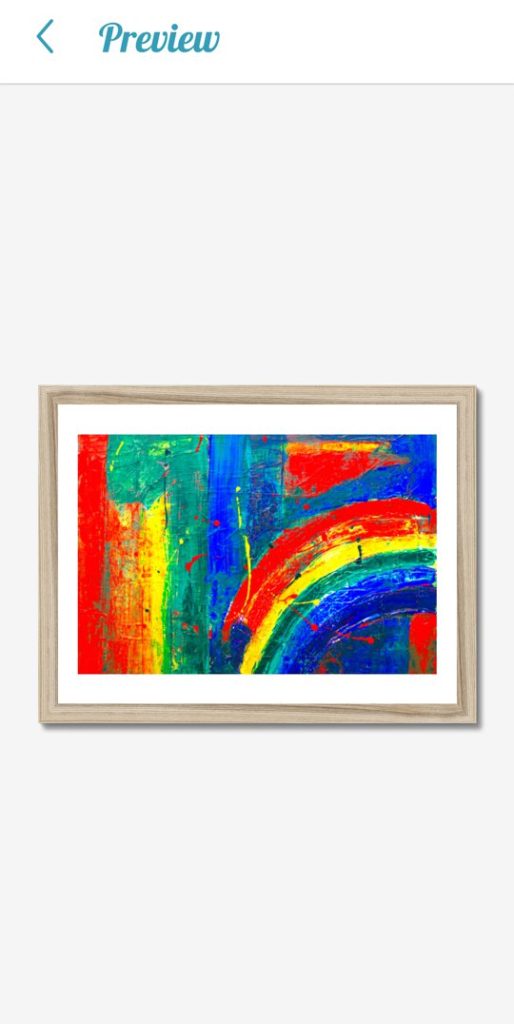
Once you’re happy with your print configuration and Preview, you can either save your creation to the Creations section of the app by using the “Save Creation” button, or add the product & creation to your Basket using the “Add to Basket” button. Adding a product & creation to your Basket will also by default save the creation to your Creations section.