
Once you’ve selected a product in the Shop, you’ll be prompted to “Create your Print“.
The Create your Print page displays your selected product, its current setup, and is where you can select the required number of pictures from your gallery for the selected product.
- Click Add Pictures to select the required number of pictures from your galleries
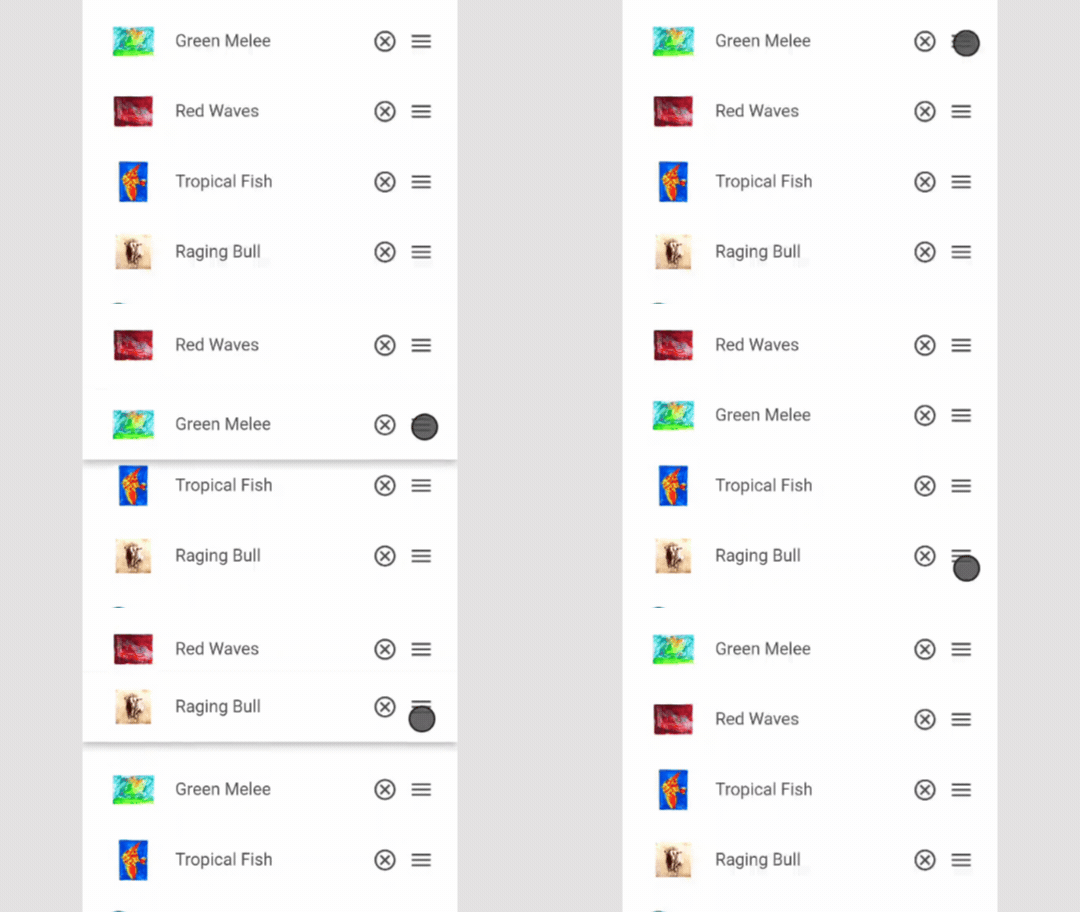
- If you’ve selected a product that requires more than one picture, such as a collage, you should select multiple pictures and order them according to your preferred display order (from top left to bottom right. You can hold and drag each added picture to change the order in which they appear in your collage.
What’s a Creation?
A Creation is simply your customised configuration of a shop product and your artwork.
Configure the Print Setup
Tap “Configure” to enter the Creation Details page. Here you can change and try out different settings for the print. You can modify:
- Orientation: If the product is available in landscape and portrait you can change this here.
- Background: Optionally, you can select a different background colour for your print to help strike a tone you’re looking for. See how it would look using the Preview feature!
- Frame Colour: If its a framed product you can change the frame colour here.
- Size: If its an item of apparel / clothing, you can change the size here.
- Colour: If its an item of apparel / clothing, you can change to another colour here.
- Title & Description: Add a title and description for your creation, so you can save and revisit it later.

After each change to the configuration, check the Preview function prior to saving the creation or adding it to your basket.
Saving Creations
You can save creations as you create them, either updating an existing creation or creating a new one. Click the “Save Creation” button to save your creation. The app will offer you the option of saving the creation with its most recent changes or saving it as a copy.
Your creations are saved and stored in the Creations section of the app, accessible from the side menu.
In Creations you can see your list of creations. You can select the checkbox to either add the creation to your basket or delete it. Clicking on the Creation title will load the creation in the Create your Print page, from where you can make edits to the configuration again and proceed with adding it your basket.